
Bluetooth LED glasses bring your party look to life with full customization. Learning to control Bluetooth LED glasses through a smartphone app lets you type messages, draw pixel art, pick vibrant RGB effects, sync to music, and change designs on the fly. No more limited button patterns—your glasses become a personal scrolling billboard!
Coreida's app-controlled models use simple, intuitive apps (commonly "Shining," "LED Ble," or similar names found in the manual). This tutorial covers the full process from pairing to troubleshooting.
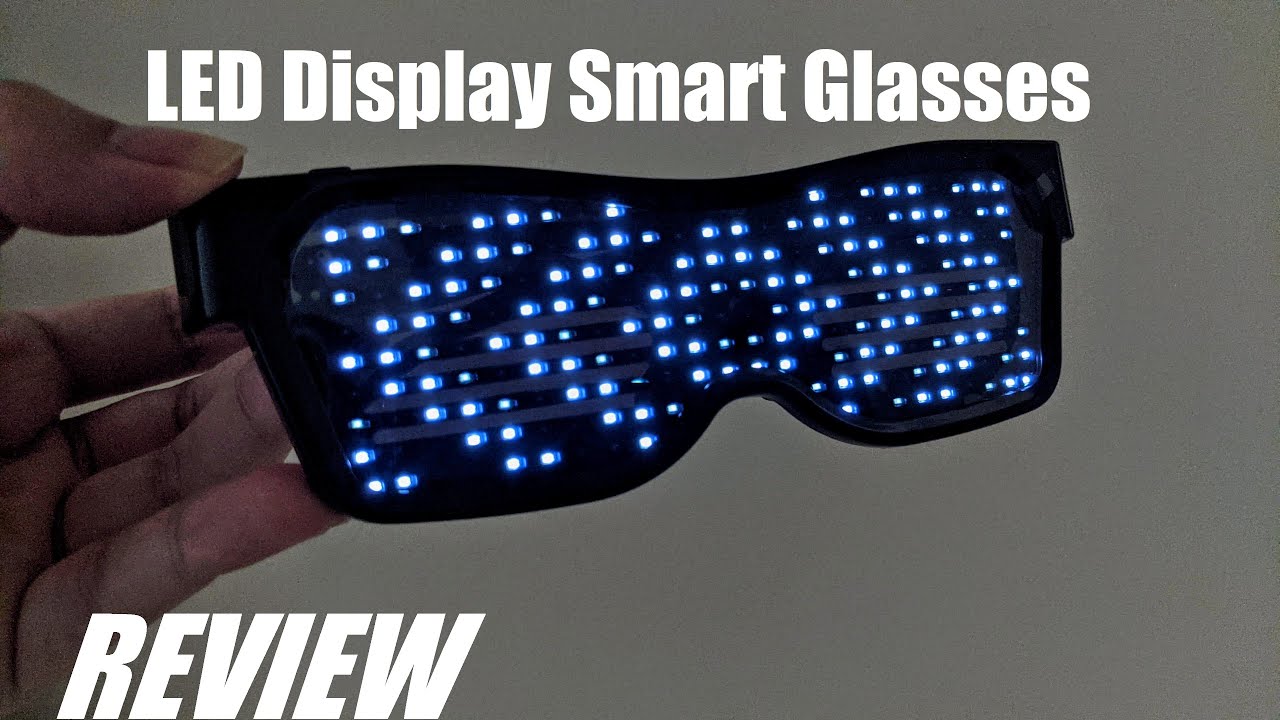

Download & Pair the App
Getting connected is quick and usually takes under two minutes.
- Fully charge the glasses — Plug them in with the provided USB cable. A red indicator typically means charging; it changes to green or turns off when complete.
- Find and download the app — Check your product box, insert card, or manual for the exact app name and QR code. Search your app store (Google Play or Apple App Store) for it. Popular ones include "Shining," "LED Glasses," or brand-specific versions.
- Power on the glasses — They often enter Bluetooth pairing mode automatically (you'll see rapid flashing LEDs or a signature color pulse).
- Pair via Bluetooth — Open your phone's Bluetooth settings, ensure it's on, then launch the app. Tap "Connect" or "Scan." Your glasses should show up (e.g., "LED Glasses_XXXX" or similar). Select it and accept any prompts. Success shows a connected status and live preview in the app.
Tip: Keep your phone within 5–10 meters and minimize interference from Wi-Fi routers or other Bluetooth gadgets during setup.


Upload Text / Patterns
This is where the creativity explodes—turn your glasses into a custom light show.
- Open the main editor — After connecting, navigate to the text, drawing, or animation section.
- Create scrolling text — In the text tool, type anything: your name, "PARTY!", "HAPPY BIRTHDAY", emojis, or jokes. Customize:Scroll speed and directionColor (single hue or full RGB gradient/rainbow)Animation style (blink, fade, etc.)Font size or effects
- Design patterns & animations — Use the built-in library for hearts, waves, fireworks, or sound-reactive modes (glasses react to music via your phone's mic). Many apps include a pixel drawing canvas—sketch simple icons, logos, or faces pixel by pixel. Upload images from your gallery for conversion to LED patterns.
- Apply & preview — Tap "Send," "Upload," or "Apply." Watch the design appear instantly on the glasses in real time. Save favorites for quick access later.
Explore more advanced RGB Bluetooth options or browse our full [App Controlled] selection at https://coreida.com/collections/led-glasses for models with the best app features.


Common App Issues & Fixes
Tech hiccups happen—here are the most common problems and fast solutions:
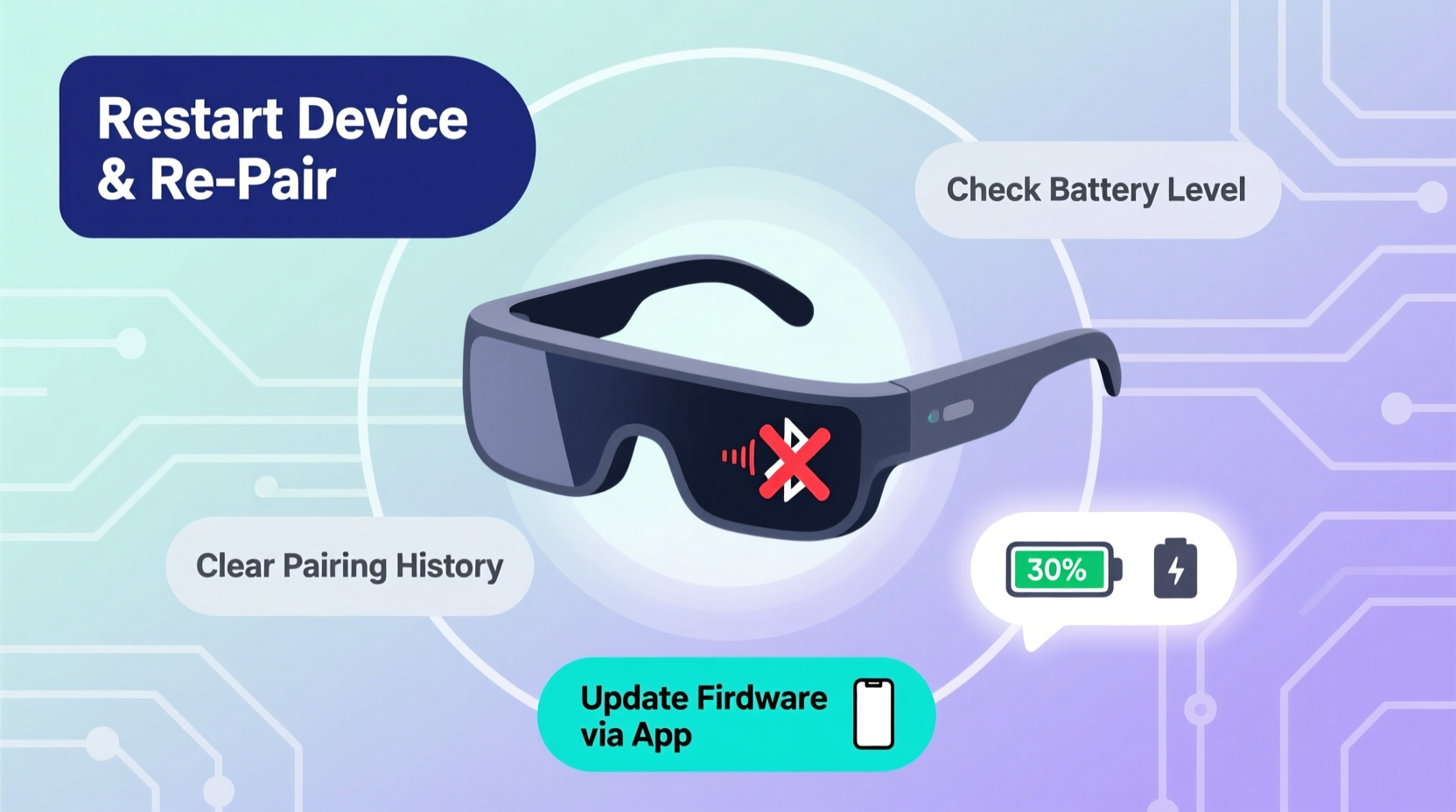
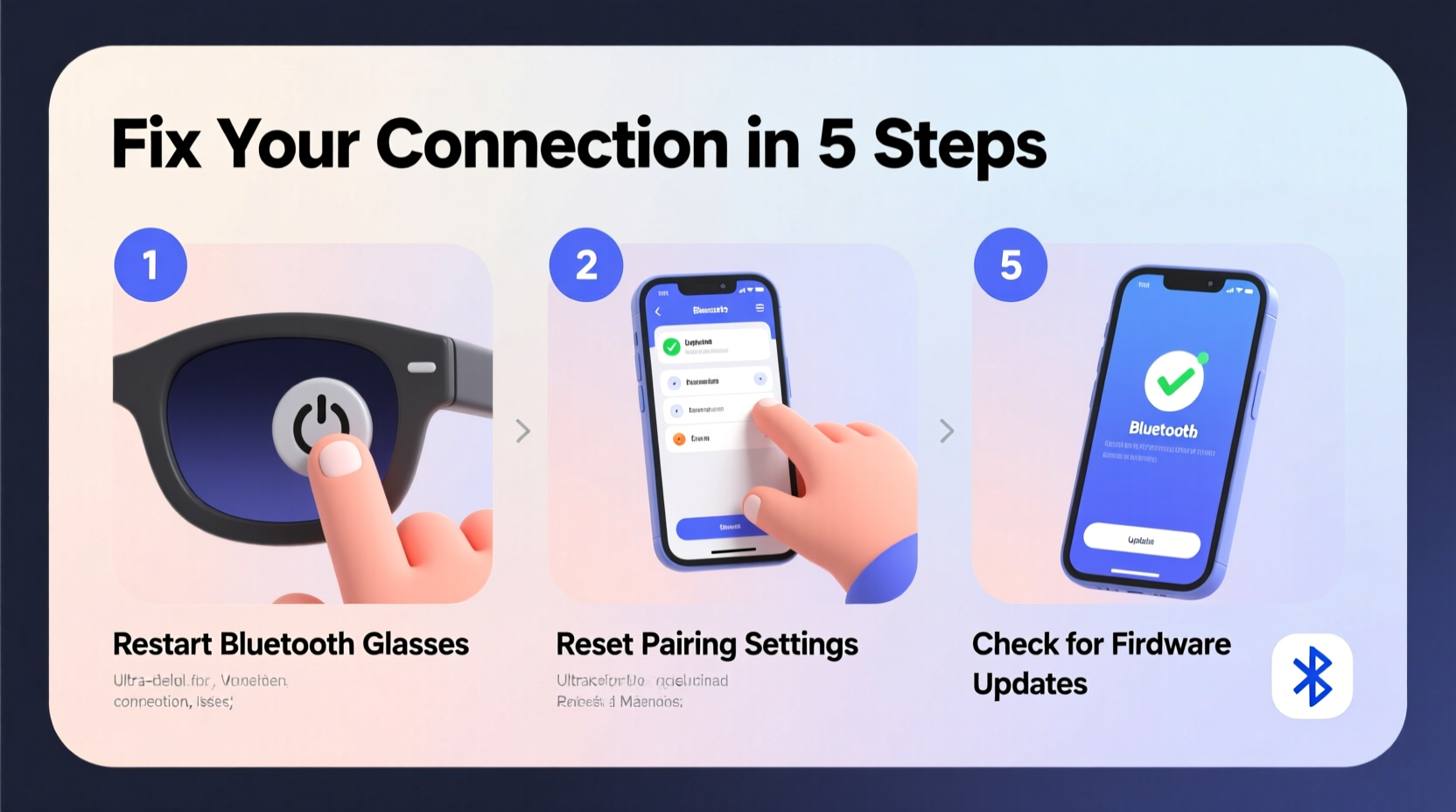
- Glasses not showing in Bluetooth list / Won't pair Restart Bluetooth on your phone, power cycle the glasses (off/on), forget the device in settings if previously paired, then retry. Make sure glasses are in pairing mode (flashing LEDs).
- Connected but no pattern updates / Display frozen Check battery level (low power causes issues), force-close and reopen the app, or toggle Bluetooth off/on. Re-send the design. Grant all requested permissions (location/nearby devices on Android).
- Laggy response or delay Get closer to the glasses, close background apps eating resources, or restart both devices. Avoid pairing while charging the phone.
- App crashes or won't launch Update the app to the latest version, clear cache/storage (Android settings), or reinstall. Confirm your phone meets requirements (usually Android 5.0+ or iOS 10+).
If nothing works, reset the glasses (check manual for button combo—often hold power 10+ seconds) or contact Coreida support with your model number.
Mastering app control transforms your Bluetooth LED glasses into the ultimate party upgrade—personal messages, matching outfits, beat-sync effects, and endless fun.
Head to https://coreida.com/collections/led-glasses to grab your pair and start creating today!
What's the coolest message or animation you've made (or plan to make)? Share below! 🎉