
In the world of light up glasses, Bluetooth-enabled models take the fun to the next level. With control Bluetooth LED glasses via a dedicated smartphone app, you can customize colors, upload scrolling text, create animations, sync to music, and switch patterns instantly—no manual buttons required.
Whether you're prepping for a festival, party, or just want to show off personalized messages like your name, a funny phrase, or even emojis, app control makes it effortless. Most RGB Bluetooth glasses from Coreida use user-friendly apps (often called "LED Glasses," "Shining," or brand-specific names) available on iOS and Android.
Follow this step-by-step guide to get started.
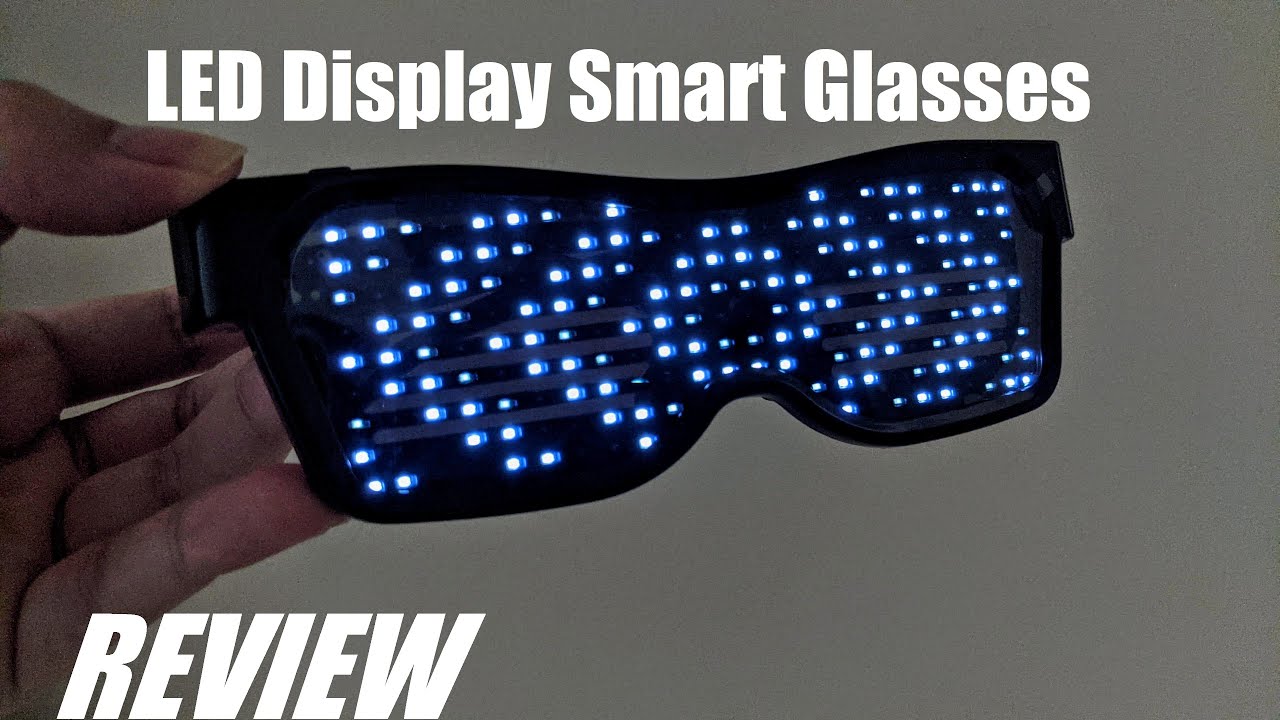
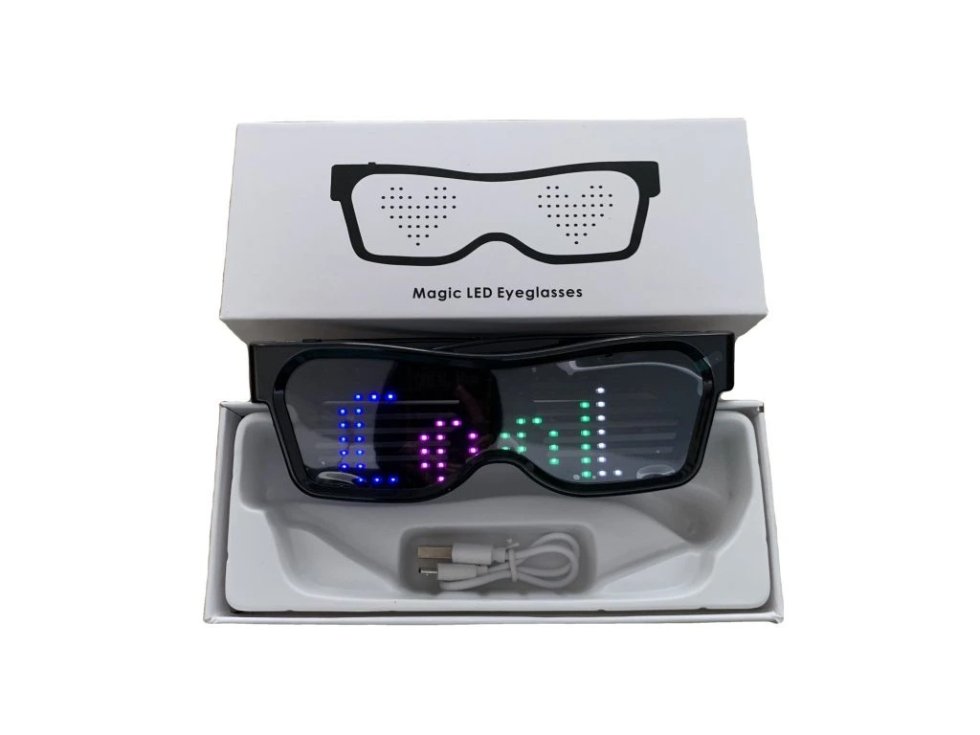
Download & Pair the App
- Charge your glasses first — Make sure they're fully charged using the included USB cable. Most models show a red light while charging and turn green/blue when ready.
- Download the app — Search your phone's app store for the app name provided in your product manual or packaging (common ones include "CHEMION," "Shining Glasses," "LED Ble," or similar). If unsure, check the QR code on the box or product insert.
- Enable Bluetooth on your phone and turn on the glasses. Many models enter pairing mode automatically when powered on (look for flashing LEDs or a specific color pulse).
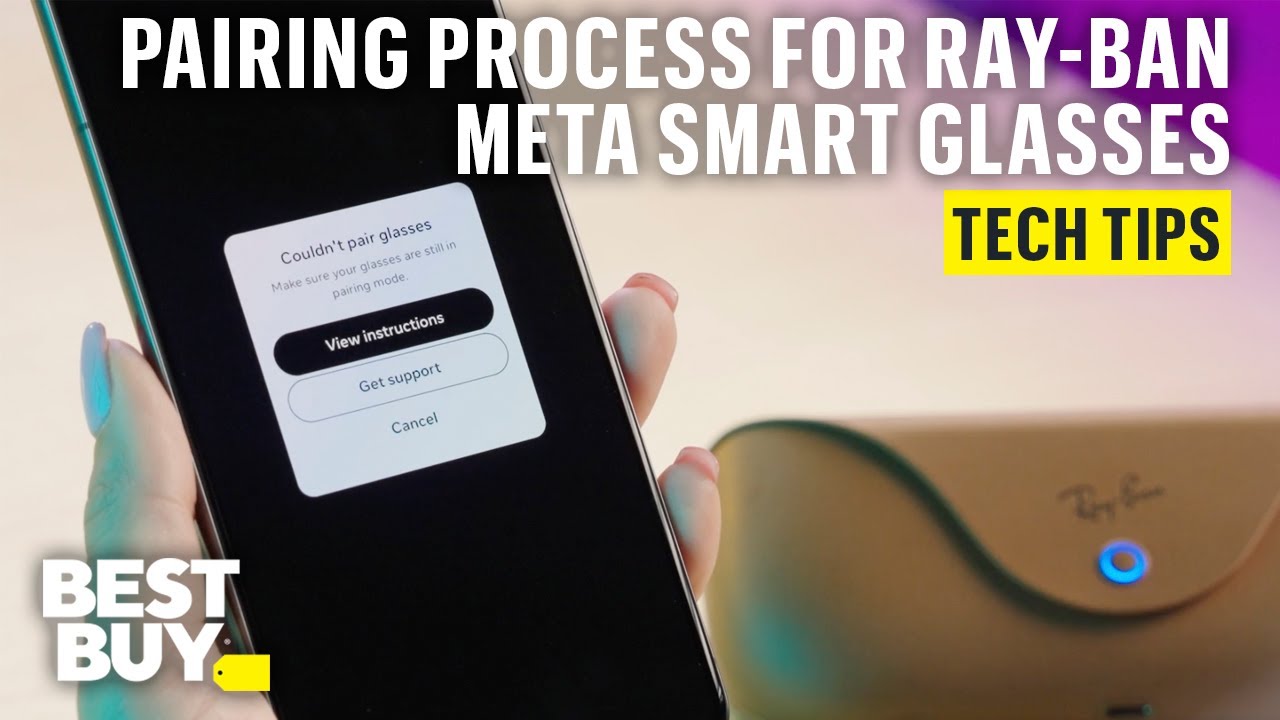
- Open the app and pair — Tap "Connect" or "Pair Device." Your glasses should appear in the list (often named "LED Glasses XXXX" or the brand). Select it and confirm any pairing requests. Once connected, the app will show a live preview of the glasses' display.
Pro tip: Stay within 10 meters (33 feet) and avoid interference from other Bluetooth devices during initial pairing.


Upload Text / Patterns
Once paired, the real magic begins. The app usually has sections for text, images/animations, colors, and effects.
-
Create custom text — Go to the text editor tab. Type your message (e.g., "PARTY TIME!", your name, or "HAPPY NEW YEAR"). Adjust:
- Scrolling direction (left/right)
- Speed
- Font size/style
- Colors (single color or rainbow gradient)
- Add patterns & animations — Browse built-in animations (hearts, waves, fireworks, etc.) or upload simple pixel images. Many apps let you draw pixel art directly or import from your gallery.
- RGB effects — Select dynamic modes like breathing, flashing, sound-reactive (glasses pulse to music via phone mic), or full RGB color cycling.
- Save & send — Hit "Apply," "Send," or "Upload." The glasses update in real-time—watch your message scroll or pattern animate right on the lenses!
Explore our [App Controlled] collection or check out [RGB Bluetooth] styles for the latest models with advanced app features.


Common App Issues & Fixes
Even the best tech can glitch—here are quick solutions for frequent problems:
- Won't pair / Can't find device Fix: Restart Bluetooth on phone, power cycle glasses (turn off/on), forget the device in Bluetooth settings and re-pair. Ensure glasses are in pairing mode (usually flashing rapidly).
- App connects but no display update Fix: Check battery level, re-send the pattern, or toggle airplane mode briefly. Some apps require granting location/nearby devices permission.
- Lag or delayed response Fix: Move closer, close background apps, or restart everything. Avoid using while phone is charging (can interfere).
- App crashes or won't open Fix: Update the app, clear cache (Android) or reinstall. Check compatibility—most work on Android 5.0+ and iOS 10+.
If issues persist, refer to the user manual or reach out to Coreida support with your model details.

With app control, your Bluetooth LED glasses become a canvas for creativity. Program a surprise message for your friends, match your outfit's colors, or sync to the DJ's beat.
Ready to take control? Shop our app-controlled LED glasses at Coreida.com and start customizing today!
What's the first message or pattern you're going to upload? Share in the comments! 🚀