
Customizable LED glasses let you turn a simple accessory into a personalized light show. With Bluetooth connectivity and a companion app, you can create scrolling messages, fun emojis, pixel art, dynamic animations, and vibrant RGB effects—all in minutes, no advanced skills required.
Perfect for parties, festivals, proposals, sports events, or just showing off your creativity, these glasses make your face the center of attention. This step-by-step guide shows you exactly how to customize text and animations on popular Bluetooth programmable models.


Step 1: Setup and Connect to the App
Start with the basics to unlock full customization:
- Charge the glasses — Use the USB cable (1–2 hours for full charge). Most show a charging indicator light.
- Power on — Hold the power button until LEDs activate or flash (pairing mode often starts automatically).
- Download the app — Use the QR code from the box/manual or search for the app name (common ones: "Shining," "CHEMION," "LED Ble," etc.) in your phone's app store (iOS/Android).
- Pair via Bluetooth — Enable Bluetooth on your phone, open the app, tap "Connect" or "Scan," and select your glasses (e.g., "LED Glasses_XXXX"). Confirm pairing— you'll see a live preview of the display in the app.
Tip: Stay close (within 10m) and avoid interference for smooth connection.
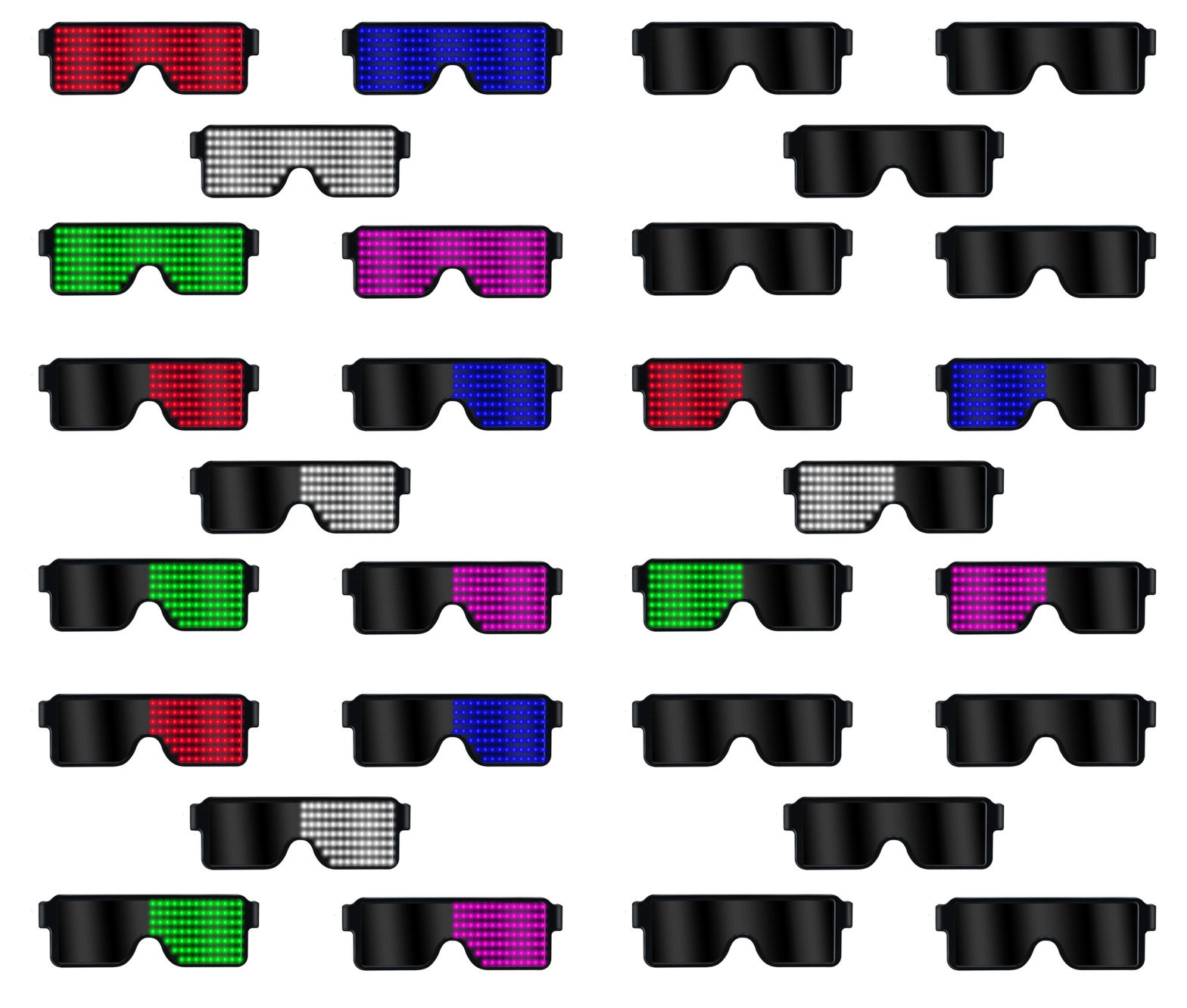
Step 2: Customize Scrolling Text
Text is the easiest and most popular way to personalize.
- Open the text editor section in the app (often labeled "Text," "Message," or a T icon).
- Type your message — Keep it short for best visibility (e.g., "PARTY TIME!", "MARRY ME?", your name, emojis like ❤️🔥, or jokes).
- Customize options:
- Scrolling speed — Slow for readability, fast for energy.
- Direction — Left-to-right, right-to-left, or bounce.
- Colors — Pick single RGB hues, gradients, rainbow mode, or multi-color patterns.
- Effects — Add blink, fade, or flash for extra pop.
- Font/size — Adjust for clarity on the LED matrix.
- Preview and send — Hit "Apply" or "Upload." Watch the text scroll across the lenses instantly!
Pro tip: Test different speeds in a mirror—too fast can be hard to read in motion.

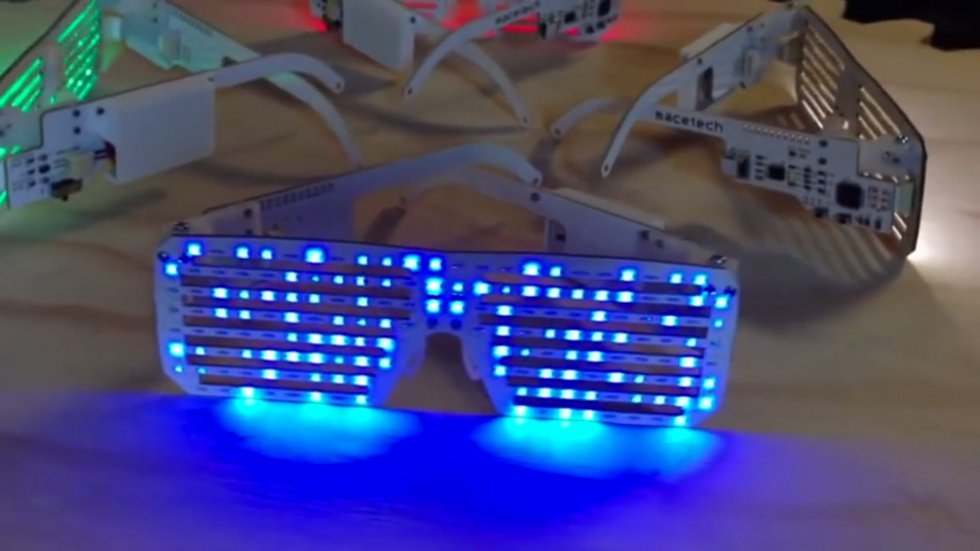
Step 3: Create & Upload Animations & Pixel Art
Take it further with moving graphics and custom designs.
- Go to the animation or drawing tab (often "Draw," "Animation," "Pixel Art," or icon-based editor).
- Draw pixel art — Use the grid canvas to create simple icons pixel by pixel (hearts, smileys, logos, animals, flags). Many apps include tools like brush, fill, erase, and layers.
- Add built-in animations — Browse libraries for ready-made effects: fireworks, waves, bouncing balls, pulsing patterns, or sound-reactive modes (glasses react to music via phone mic).
- Customize RGB effects — Apply color cycling, breathing fades, gradients, or full rainbow sweeps across frames.
- Animate sequences — Create multi-frame animations (e.g., a heart beating or text morphing into an emoji).
- Preview live, then upload — Tap send to see your creation play on the glasses in real time. Save designs for quick reuse.
Explore endless ideas: match your outfit colors, sync to a playlist, or display event-specific art.


Ready to make your own? Our [Customizable RGB LED Glasses - Bluetooth 4.0 Programmable] are perfect for easy text and animation control: https://coreida.com/products/customizable-rgb-led-glasses-bluetooth-4-0-programmable
What custom message or animation are you planning to create first? Share in the comments! 🎨✨