
Programmable RGB LED glasses are a game-changer for anyone who loves standing out at parties, festivals, or events. With full RGB color control and app-based programming, you can display scrolling text, custom pixel art, animations, emojis, and dynamic effects—all from your smartphone. No coding experience needed!
This beginner-friendly tutorial focuses on Bluetooth-enabled programmable LED glasses (like our popular models with Bluetooth 4.0). Most use similar apps (often "Shining," "CHEMION," "LED Ble," or brand-specific ones), making the process straightforward and fun.

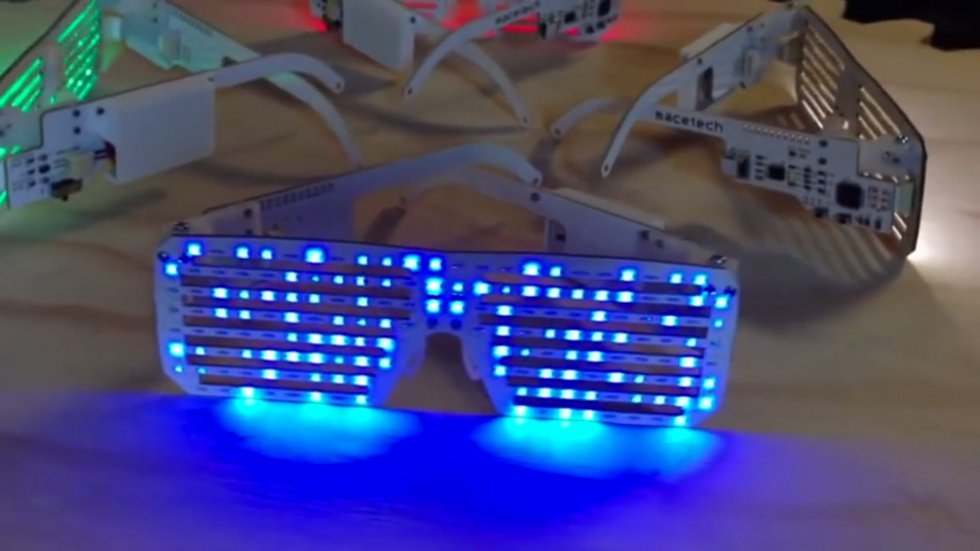
Step 1: Get Ready & Charge Up
Before programming, prep your glasses:
- Unbox and charge fully using the included USB cable (usually 1–2 hours). Look for a red light during charging; it turns off or changes color when done.
- Power on the glasses (press and hold the power button—often on the side or frame—until LEDs light up or flash).
- Download the app: Scan the QR code from the manual/box or search your app store (iOS/Android) for the exact name provided with your product. Common apps support full RGB customization and real-time previews.
Tip: Read the quick-start guide in the box—it usually lists the app name and any special pairing notes.
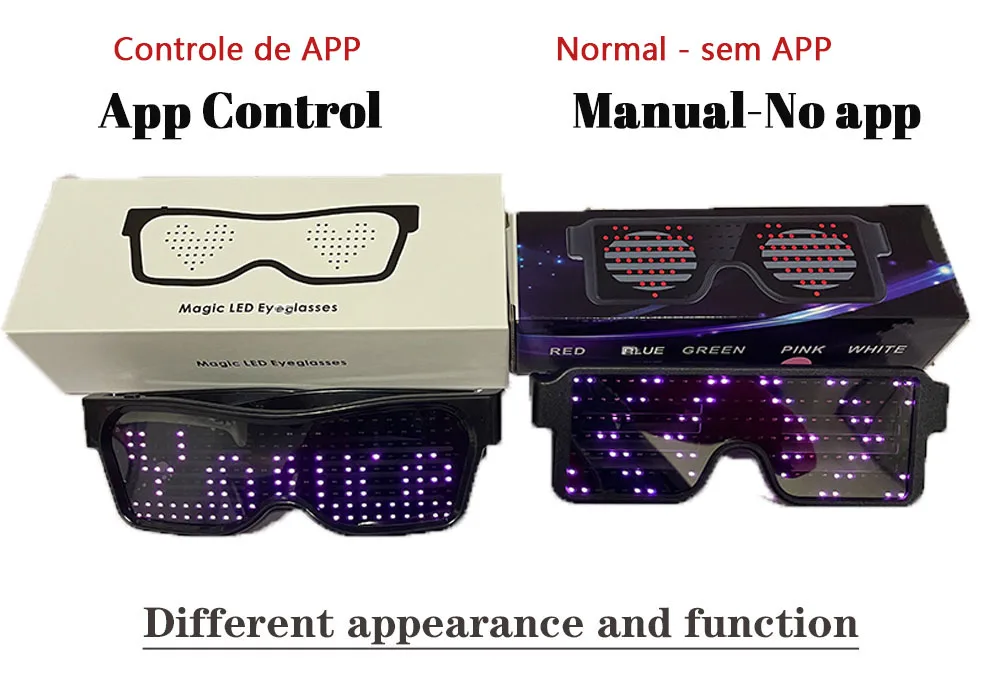
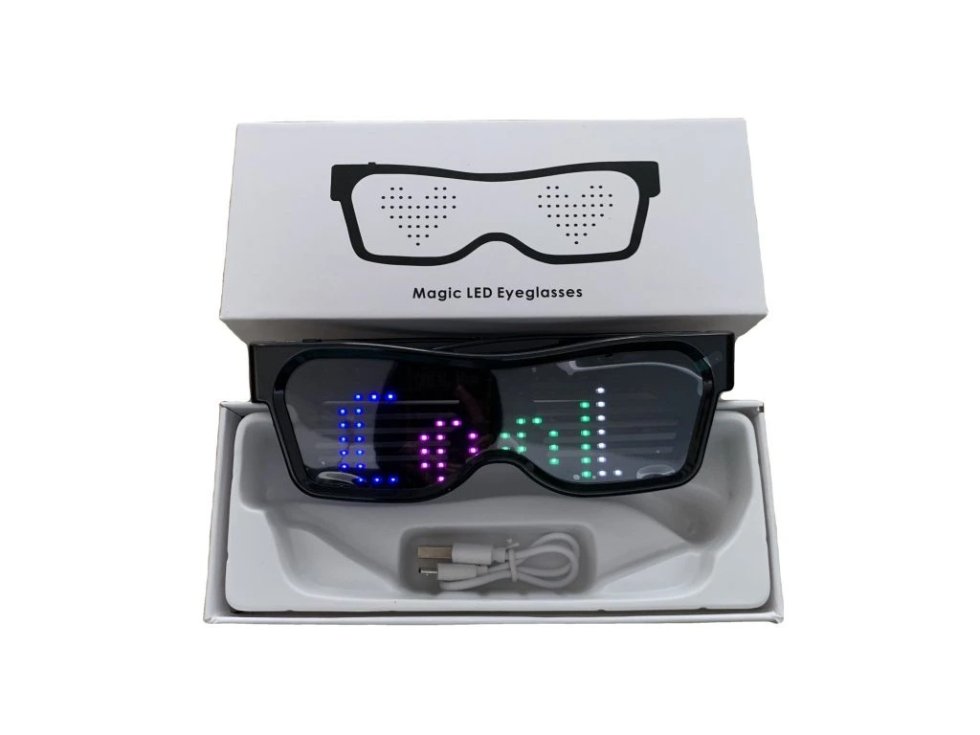
Step 2: Connect via Bluetooth
Pairing is the key to unlocking programming:
- Turn on Bluetooth on your phone.
- Power on the glasses—they typically enter pairing mode automatically (rapid flashing LEDs or a pulsing color).
- Open the app and tap "Connect," "Pair," or "Scan Device."
- Select your glasses from the list (often named "LED Glasses_XXXX," "Shining," or similar).
- Confirm pairing if prompted. Once connected, the app shows a live view of the glasses' display matrix.
If it doesn't connect, restart Bluetooth, power cycle the glasses, or move closer (within 10 meters). Avoid other nearby Bluetooth devices during setup.

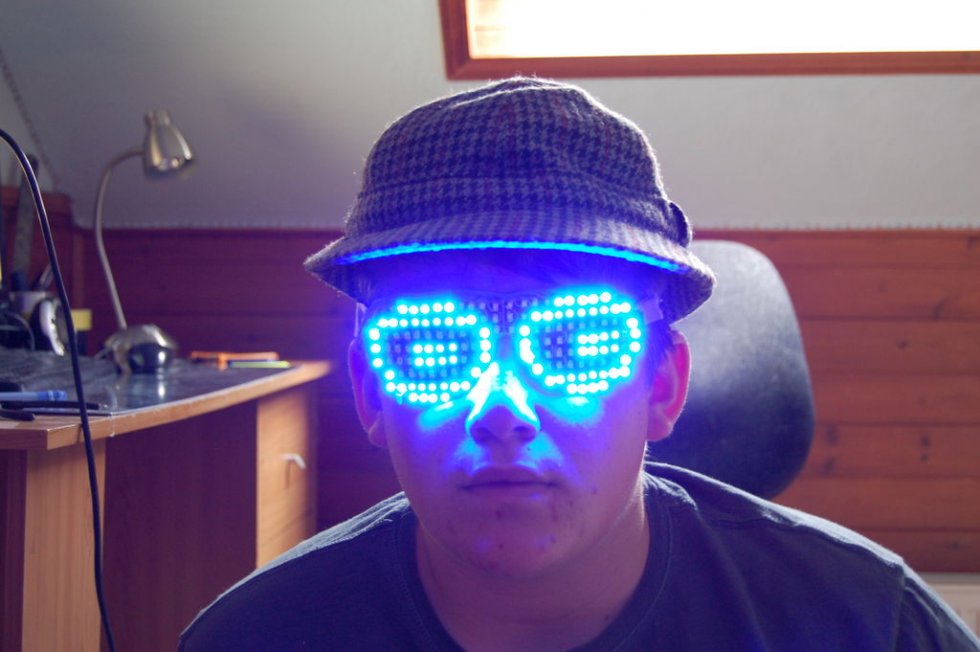
Step 3: Start Programming Your Designs
Now the creative part—program anything you want!
- Text messages — Go to the text editor. Type your message (e.g., "HELLO WORLD", your name, "PARTY ON!", or emojis). Adjust:Scroll speed/directionRGB colors (single, gradient, rainbow)Blink/fade effectsFont size or style
- Pixel art & animations — Use the drawing canvas to create simple icons (hearts, smileys, logos) pixel by pixel. Many apps have built-in libraries for animations (fireworks, waves, bouncing effects) or sound-reactive modes (pulses to music via phone mic).
- Advanced RGB effects — Choose dynamic patterns like color cycling, breathing, or full-screen gradients. Preview everything in the app before sending.
- Send to glasses — Hit "Upload," "Apply," or "Send." Watch your creation appear instantly on the lenses in real-time!
Save your favorites for quick reuse at events.


Quick Tips for Beginners
- Start simple: Try a short scrolling text first, then experiment with colors and patterns.
- Battery life: Programming and bright RGB modes drain faster—keep them charged.
- App permissions: Grant location/nearby devices access if requested (needed for stable Bluetooth).
- Share creations: Some apps let you save/share designs with friends.
Ready to program your own? Check out our [Bluetooth 4.0 Programmable]Customizable RGB LED Glasses here: https://coreida.com/products/customizable-rgb-led-glasses-bluetooth-4-0-programmable for the perfect beginner-friendly model.
You've got this—what's the first design you're going to program? Drop it in the comments! 🌈✨